How to use Google lock screen widgets for iPhone
-
 Loading...
 - Martin Frank
- 14 Oct 2022
- 58 Views
- 0 Like
- 0 Comment
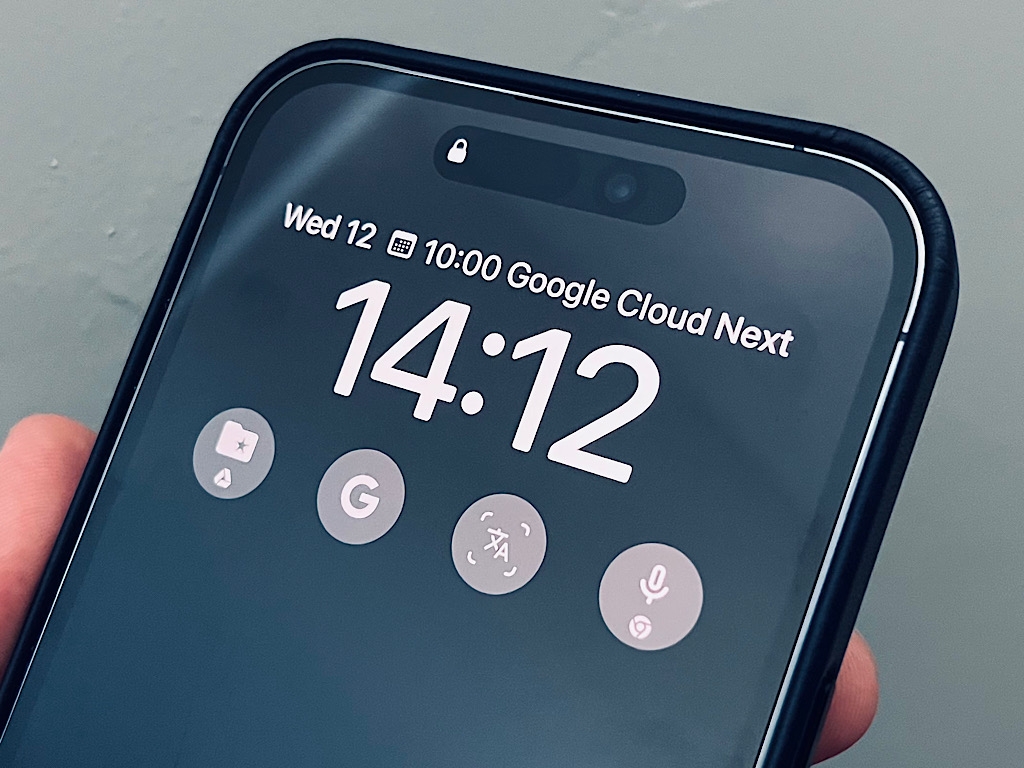
In October 2022, Apple made it easier to get information at a glance with two significant changes. First, iPhone 14 Pro and iPhone 14 Pro Max added support for an always-on display, selectable with a setting: Settings > Display & Brightness > Always On, slide to enable. Second, with iOS 16, you may not only customize wallpaper and backgrounds but also add a limited number of lock screen widgets: Lift your phone, then touch and hold the lock screen until customization options display.
The lock screen offers two widget areas, with up to four custom widgets added below the clock and one custom widget selected above the clock. To add a widget, you first need to have installed the corresponding app. For example, you need the Google Drive app installed in order to add the Google Drive widget. Additionally, you may need to sign in with an account before a widget will work. For example, you need to sign in with a Google account to the Gmail app before a widget can display the number of new emails received.
The following are a few of the most useful lock screen widgets available from Google in mid-October 2022. Read More...