An update broke my favorite game on Xbox, but there is a way to fix Apex Legends input lag
-
 Loading...
 - Louis Peeters
- 04 Jul 2022
- 126 Views
- 0 Like
- 0 Comment
Last week, EA’s battle royale shooter Apex Legends launched a “collection event,” which is shorthand for a limited-time setup that is mostly about players buying a bunch of cosmetic items from the in-game store. The only problem is that this time, the massive update has made the game nearly unplayable for many people on consoles.
Without warning, the battle royale shooter’s usually tight and responsive controls — a known quantity for Respawn Entertainment games since Titanfall and a reflection of its Call of Duty heritage — have become slow, laggy, and frequently unresponsive. Even worse, simply playing the game can make your control inputs feel altered even in the dashboard, and while using other games; restarting the console seems to fix this issue. Players have found one way to reliably address the issue, by rolling back firmware on certain Xbox wireless controllers, which I’ve confirmed works and you can read on to find the steps on how to do it.
PLAYERS HAVE FOUND A WAY TO FIX THE ISSUE BY THEMSELVES
Players on Xbox Series X consoles appear to be complaining the most, especially when paired with one of Microsoft’s Elite gamepads. Without any specific information about what the problem is, I can only describe what I’ve experienced, which is a combination of lag, as well as failed input detection that can make it hard to do things like use burst fire weapons, change directions, or even pick up items from the ground. After trying it out a bit over the weekend, I noticed input lag as an issue the most while playing on Xbox Series X and Series S, using both an Elite 2 gamepad, as well as newer Xbox Series gamepads that include the share button.
Acknowledgment of the problem by developers has been limited to a couple of reply tweets last week and one Monday afternoon saying the team is continuing to investigate. However, not everyone who plays the game follows its official Twitter account or dug into replies to find the initial statements, leaving many players in the dark about what might be going on while they try to play a competitive shooter using controls that just don’t work.
As it is, people who play the game have been left to discover the problem on their own and pass around possible solutions. I tried some of them, like updating the controller firmware or not updating it or plugging the pad in with USB instead of playing wirelessly. . Of those, plugging the gamepad in seemed to help a bit, but it still wasn’t as responsive as it used to be. What I saw was consistent with some reports posted on Reddit, where plugging in seemed to fix the failed input detection issue without resolving the lag and stuttering. This post highlights how, after playing Apex, they experienced input lag system-wide on the dashboard and in other games, which I also noticed.
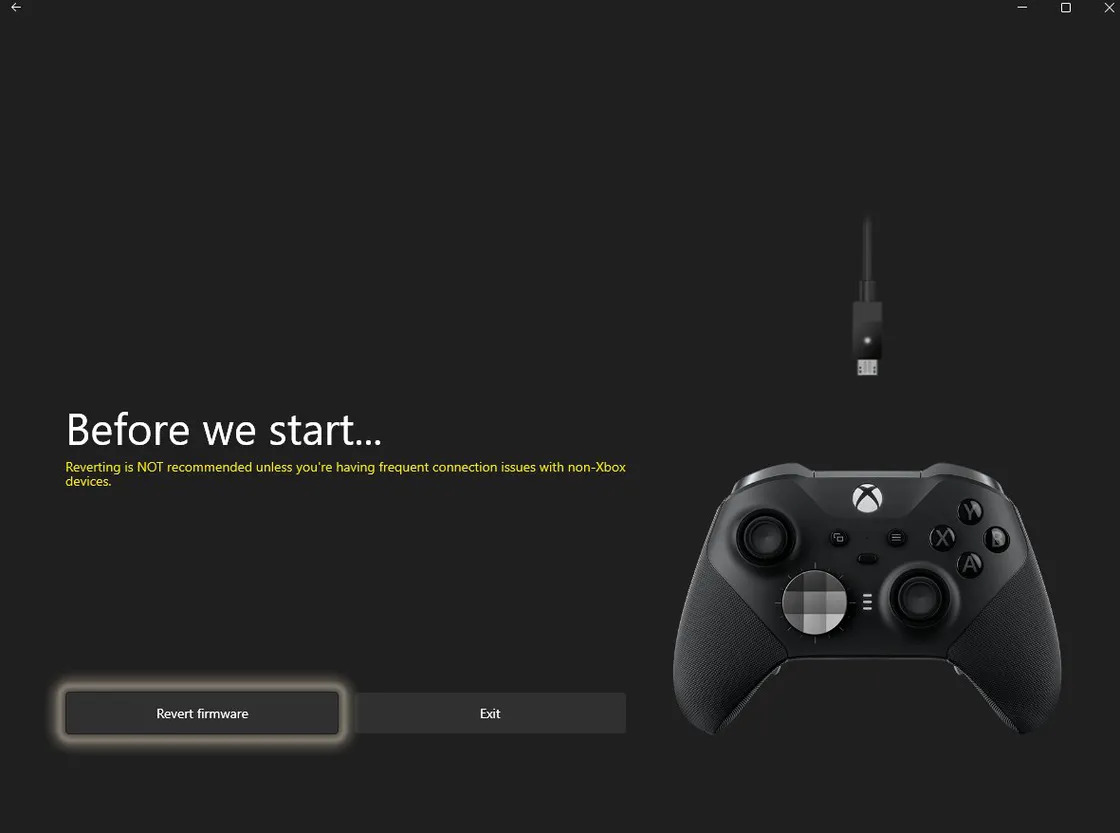
While there haven’t been any updates from EA, Respawn, or Microsoft about what is causing the problem, players seem to have found at least one thing that mitigates the issue. For people who have a second-generation Elite gamepad, rolling the controller back to an Xbox One version of the controller’s firmware, for some reason, restores the inputs to a playable state. I tried this myself, and while the problem is so hard to perceive that I can’t tell if it’s completely fixed, the game felt noticeably better and is completely playable.
This Reddit post has the instructions on what to do, and following them solved the problem of input lag while trying to play Apex Legends on my Xbox Series X and Xbox Series S consoles. You’ll need a PC running Windows 10 or 11 (if you’re on a Mac, installing Windows in Boot Camp should work), where you can install the Xbox Accessories app from the Microsoft Store.
Once you have it, just use a USB cable to plug the Elite 2 controller in. Then you won’t actually use the app itself, as it doesn’t have a built-in button for the function you need. Instead, open the Windows run menu (you can do this by pressing the Windows key on your keyboard and the letter r at the same time), and type in this entire string, without anything else around it. Read More...